Welcome! Want to do some screencasting for flipped classroom or video tutorials on your Chromebook? Then you’ve come to the right place. The following are screencasting/webcam recording apps worth checking out.
Here’s a quick list of the rest in order of preference:
You can read the rest of this blog entry for more details….
It was only yesterday that a colleague asked, “How do you record video on the Chromebook?” While I have always tested video recording with WeVideo, I found myself looking for an app that would record video locally. . .I just hadn’t made the time to search.
Thank goodness for my Twitter PLN! Where else can you ask a question and get responses back in a short time period?
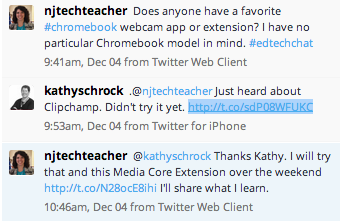

Fortunately, since Chromebooks are smashing the Education Market in the U.S.A., LOTS of folks are asking great questions, sharing them via Twitter.
As of the third quarter of 2014, Chromebooks have displaced iPads as the most popular new devices shipping to U.S. schools. This is a huge win for Google in a market historically dominated by Apple and Microsoft. According to the Financial Times and IDC, “Google shipped 715,500 of the low-cost laptops into US schools in the third quarter, compared with 702,000 iPads.” Even more striking, the $199 and up Chromebooks have gone from zero to a quarter of the educational market in only two years…While Apple has been pumping iPads into schools, Google has gotten many of the same schools hooked on its free Google Apps for Education Suite.
Source: Forbes.com Article
TIP – Quick Chrome App Management: Before we get started adding a whole bunch of extensions/apps to your Chromebook, you might want to first install Simple Extension Manager…that way, you can easily manage/disable extensions or apps you don’t want instead of digging around the innards of Chrome browser tools.
Some solutions for the webcam recording app question that involves saving directly to your Chromebook:

- My Pick: Screencastify – This remains an easy choice to depend on and I keep coming back to it, even after having tried all the rest. It features picture in a picture as well.
- ClipChamp – This was an easy to use webcam capture tool. Read this great blog entry that walks you through the whole process of using ClipChamp…at the end of the process, you end up with these options shown right. As you can see, the video you get is an MP4 that is viewable and sharable on most devices and web sites.
- MediaCore Capture – I really liked MediaCore Capture…it recorded not only my screen, but also included a video feed of me in the bottom right hand-corner! The only fly in the ointment is that the video format it creates is webm (a.k.a. HTML5 video), which you would have to convert–maybe use Zamzar.com WebM to MP4–before uploading to a video sharing site. I can really see using MediaCore Capture as a screencasting alternative to Screencastify and TechSmith’s Snagit app and extension combo, which (as far I know) only offers screencasting.
- TechSmith’s Snagit app and extension combo
 |
| Zamzar Video Conversion needed for MediaCore Capture |
If you are looking for quick captures using the WebCam, consider these apps as well:
Here are a few tools you can use to convert from WebM to MP4, but if you’re putting the WebM videos in YouTube, it won’t be a problem…YouTube can handle WebM/HTML5 videos!
- Miro Video Converter (Mac/Windows/Linux)
- Web-based Converters
- Zamzar.com WebM to MP4
- Video Converter (Chrome app!)
- Online Video Converter
Make Donations via PayPal below:

var _gaq = _gaq || []; _gaq.push([‘_setAccount’, ‘UA-3445626-5’]); _gaq.push([‘_setDomainName’, ‘mguhlin.org’]); _gaq.push([‘_trackPageview’]); (function() { var ga = document.createElement(‘script’); ga.type = ‘text/javascript’; ga.async = true; ga.src = (‘https:’ == document.location.protocol ? ‘https://ssl’ : ‘http://www’) + ‘.google-analytics.com/ga.js’; var s = document.getElementsByTagName(‘script’)[0]; s.parentNode.insertBefore(ga, s); })();
Discover more from Another Think Coming
Subscribe to get the latest posts sent to your email.
 Another Think Coming
Movenote is a Chrome app that is easy and works well.
Thanks for the comparison, great to see that there are a number of Chrome apps to use for webcam and screen recording!
One thing, it seems to me like all these apps are for slightly different purposes though, no? I mean is Mediacore a screen recorder and captures the user in front of the computer via webcam as part of a screen recording session or can it also just record the user via webcam without capturing the screen at the same time?
And Clip champ is not a screen recorder but uses the webcam to take a video of the user, right?
In any case, thanks for the list of useful apps.
Rob, you're right. There are nuances to each. I wish I'd made a chart of the different apps and features…hindsight is 20/20.
🙂
This blog entry developed via experimentation with different tools and I had fun. It needs more organization, though!
I am really impressed by reading this blog. Interesting post and I really like your blog! Great job…! recording app
Yup, Screencastify is the most convenient app to record Chromebook screen. Besides that, I think Skiblz Cam is also workable on Chrome OS, which I learned from an article about recorders for Chromebook( http://www.apowersoft.com/record-video-on-chromebook.html ). Absolutely, your recommendations are very helpful, thx for sharing.
is there on i can use OFFLINE? i need to be able to record my videos without a wifi connection being active. any ideas?